Calendar invite spam prevention

Make one change in your web client settings to prevent spam from automatically being added to your calendar.
 
How to Change User Preferences (Web Client)
 
  1. Use the Classic Web Client (if using Modern, select the classic from beneath your name in the upper right corner)
  2. Go to the Preferences tab.
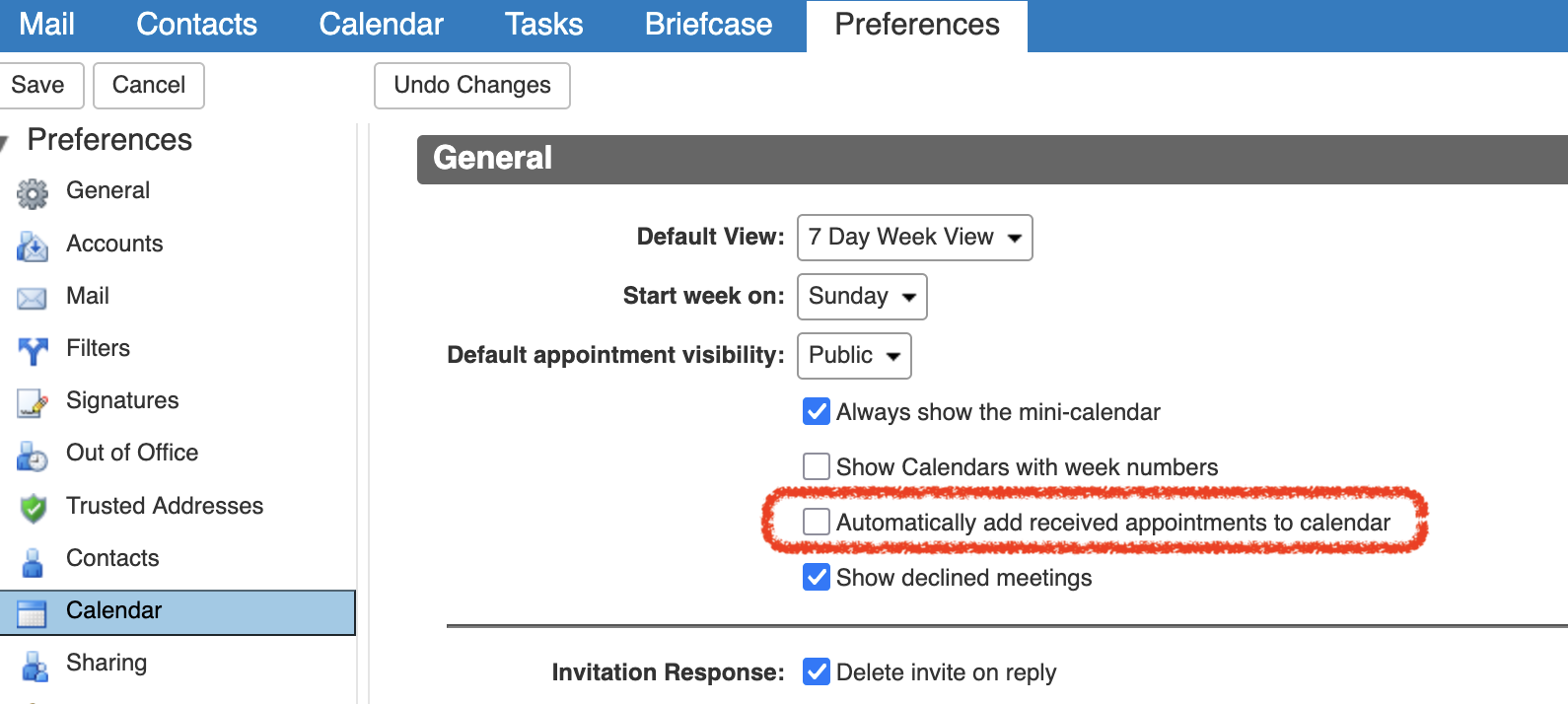
  3. Click on the Calendar folder in the left navigation pane.
  4. Scroll to the Invitations section.
  5. Uncheck Automatically add received appointments to calendar.
  • calendar, spam, calendars, calendaring
  • 1 Utilizadores acharam útil
Esta resposta foi útil?

Artigos Relacionados

Mac Mail problems sending outbound messages

This article describes the settings that should be used in Apple's Mac Mail.app when users...

Daily notes

To create a daily note in your webmail calendar, create a new calendar appointment, select 'All...

Must I relocate my website to use Cloudiance for email?

No, your website will remain unchanged, and does not need to be moved.   Only email for your...

Microsoft Outlook for Windows: Back up Email, Calendars & Contacts

To backup your mail, contacts and calendars you must create a PST file.  Open Outlook and Click...

Microsoft Outlook for Windows: PST Import Wizard

Using the PST Import Wizard for Outlook Installing the Outlook Connector will install a new...